Most home routers today broadcast two Wi-Fi bands: 2.4 GHz and 5 GHz. Your phone happily uses either. NesTap devices, like most smart home devices, use 2.4 GHz only. Here is why, and how to set things up so adding devices is smooth.
Why 2.4 GHz?
- It reaches further and passes through brick and concrete walls much better than 5 GHz, which matters for a switch inside a wall box.
- Smart devices send tiny messages, so they do not need the extra speed of 5 GHz.
- The radio chips are simpler and use less power, which keeps switches cool and reliable.
When your router shows only one name
Many routers combine both bands under one Wi-Fi name and move your phone between them by themselves. Usually this is fine: the switch simply joins the 2.4 GHz side. If adding a device keeps failing, try this:
- 1Open your router's settings (often printed on a sticker under the router).
- 2Give the 2.4 GHz band its own name, for example "Home-2G".
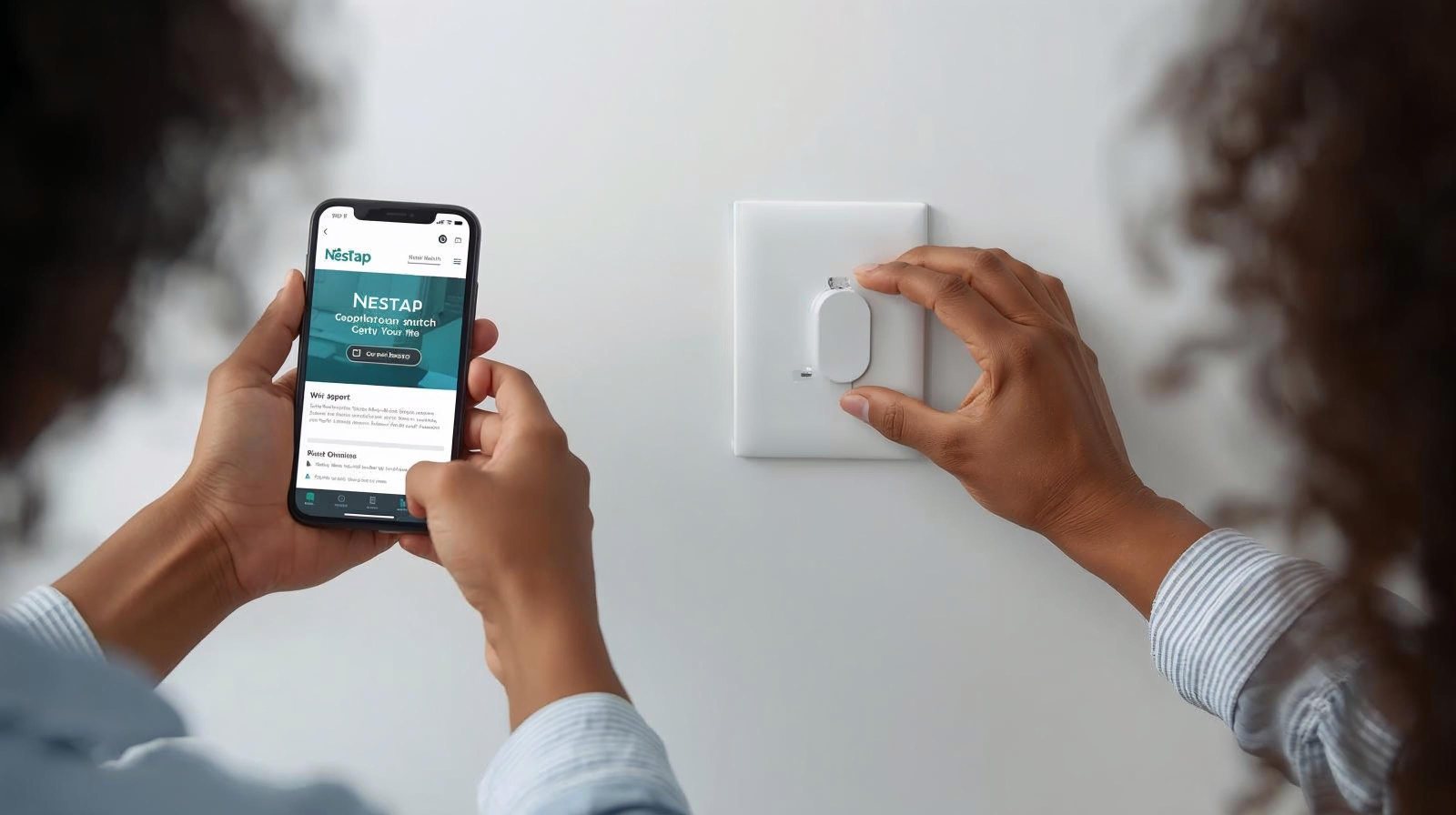
- 3Add your NesTap devices on that network.
- 4You can keep using the 5 GHz name for phones and TVs.
Every switch needs a signal
A switch in a far bedroom, a bathroom or behind a thick wall may get a weak signal. Before installation, stand next to each switch board with your phone and check the Wi-Fi bars. If a room is weak:
- Move the router to a central spot, high up and out of cabinets.
- Add a mesh Wi-Fi point or a repeater for that side of the home.
- Ask us: we check coverage as part of planning your installation.
Your password stays with you
When you add a NesTap device, your phone sends the Wi-Fi password straight to the device, not to the NesTap cloud.